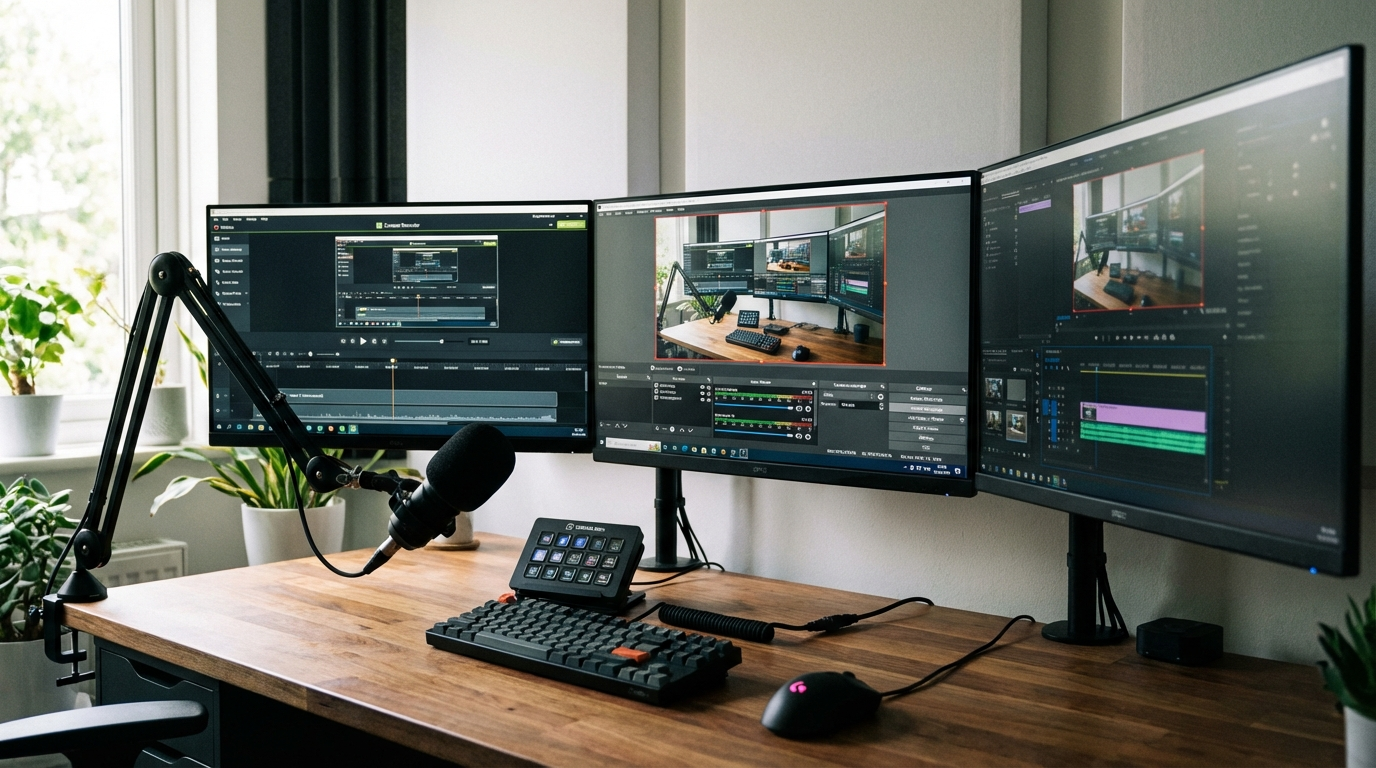
Best Screen Recording Software 2026: OBS, Camtasia, Loom Tested for Every Use Case
This article contains affiliate links. We may earn a commission at no extra cost to you.
The best screen recording software in 2026 for Windows and Mac are OBS Studio (free), Camtasia, and Loom — each serving different use cases from professional streaming to quick async video messages. After testing all three against real workflows, here’s exactly which one fits your situation.
Why Screen Recording Software Matters More Than Ever
Remote work has made screen recording an essential skill. A 2024 Loom survey of 3,000 remote workers found that video messages reduce meeting time by an average of 29% while improving information retention by 95% compared to written instructions. Meanwhile, the global screen recording software market is projected to reach $2.8 billion by 2026, driven by the explosion of online tutorials, SaaS product demos, and asynchronous team communication.
Whether you’re creating tutorials, recording gameplay, sending async team updates, or building a course — the right screen recorder makes the difference between polished, professional output and frustrating, laggy captures.
TL;DR — Best Screen Recorders 2026
| Tool | Best For | Price | Platform |
|---|---|---|---|
| OBS Studio | Streaming, advanced recording | Free | Win/Mac/Linux |
| Camtasia | Professional tutorial creation | $299.99/year | Win/Mac |
| Loom | Async team communication | Free / $12.50/mo | Win/Mac/Browser |
| ScreenFlow | Mac users, polished output | $149 | Mac only |
| Bandicam | Game recording | $39.95 one-time | Windows only |
OBS Studio — Best Free Screen Recorder
OBS Studio is the gold standard for free screen recording and live streaming. Used by millions of Twitch streamers, YouTubers, and business professionals, OBS records in virtually any format with zero watermark, no time limits, and professional-grade control over bitrate, resolution, and audio sources.
What it does well:
- Records multiple sources simultaneously (screen + webcam + multiple audio inputs)
- Scene switching for multi-camera setups
- Zero performance impact compared to commercial alternatives at equivalent settings
- Outputs to MP4, MKV, MOV, and more
- Real-time noise suppression built in
What it doesn’t do: OBS has no built-in video editor. You record, then import into another tool to edit. Also, the setup is complex for beginners — expect 30-60 minutes of configuration to get professional-quality output.
Best for: Streamers, YouTubers, anyone comfortable with technical setup who wants zero-cost professional recording.
Camtasia — Best for Tutorial Creation
Camtasia combines screen recording with a full video editor purpose-built for tutorial content. Annotations, callouts, zoom-and-pan animations, quizzes, and interactive elements are all built in. For software tutorials, online course content, and product demos, Camtasia produces more polished output than any other tool without requiring editing expertise.
The 2026 version added AI-powered noise removal, auto-generated captions, and a new “Smart Cut” feature that automatically removes dead air and filler words. After testing, Smart Cut saved approximately 45 minutes of editing time on a 20-minute tutorial video.
Pricing: $299.99/year (subscription) or $399.99 one-time perpetual license. Expensive, but justified for teams producing tutorials at volume.
Loom — Best for Async Team Communication
Loom took screen recording and added instant sharing — record a video, get a link within seconds, share in Slack or email. The viewer can respond with comments, reactions, and their own Loom reply without scheduling a meeting.
The free tier allows recordings up to 5 minutes. Loom Business ($12.50/user/month) removes the time limit and adds analytics showing who watched your video and for how long — useful for sales teams sending product demos to prospects.
Loom’s AI features (available on paid plans) automatically generate transcripts, summaries, and suggested next steps from your recordings.
ScreenFlow — Best for Mac Users
ScreenFlow ($149 one-time) is the Mac-specific answer to Camtasia. Native Apple Silicon optimization means zero performance impact even recording 4K at 60fps. Built-in editor with annotations, callouts, and an excellent stock media library. The one-time pricing is attractive compared to Camtasia’s subscription.
Limitation: Mac only. No Windows version.
Bandicam — Best for Game Recording
Game recording has specific requirements: minimal performance impact, high frame rate capture, hardware GPU encoding. Bandicam uses DirectX/OpenGL hooking to capture at up to 480fps with minimal CPU overhead. At $39.95 one-time, it’s significantly cheaper than alternatives for game recording specifically.
How to Choose the Right Screen Recorder
Choose OBS Studio if: You need free, professional-grade recording with no watermarks or time limits, and you’re comfortable with setup complexity.
Choose Camtasia if: You create tutorials, courses, or product demos professionally and need editing tools built into the recording workflow.
Choose Loom if: You primarily record quick async messages for your team or customers and value instant sharing over editing capabilities.
Choose ScreenFlow if: You’re on Mac and want an all-in-one recorder/editor with one-time pricing.
Choose Bandicam if: You specifically need high-framerate game recording on Windows at low cost.
Technical Tips for Better Screen Recordings
- Set system scale to 100%: Recording at 125% or 150% UI scaling creates blurry captures. Set to 100% before recording.
- Use hardware encoding: Enable NVENC (NVIDIA) or QuickSync (Intel) encoding to reduce CPU load by 60-80% during recording.
- Record in 1080p at 60fps minimum: Anything lower looks unprofessional in 2026. Storage is cheap; quality matters.
- Use a USB microphone: Built-in laptop microphones produce noticeably inferior audio. A $50 USB mic (Blue Snowball or Samson Go) dramatically improves perceived production quality.
- Clean your desktop: Close browser tabs, clear the desktop, hide personal files before recording.
Frequently Asked Questions
What is the best free screen recording software in 2026?
OBS Studio is the best free screen recorder — no watermarks, no time limits, professional-grade quality. For beginners who find OBS complex, Windows 10/11’s built-in Xbox Game Bar (Win+G) is a decent zero-cost alternative for basic recording.
Can I record my screen without software on Windows or Mac?
Yes. Windows 10/11 has Xbox Game Bar (Win+G). Mac has built-in screen recording via Screenshot app (Shift+Cmd+5) or QuickTime Player. Both are free and functional for basic recording but lack advanced features like multi-source capture and annotation.
Does screen recording affect computer performance?
Yes, but modern tools minimize the impact. Software encoding (x264) uses significant CPU. Hardware encoding (NVENC, AMD VCE, Intel QuickSync) uses the GPU and reduces CPU impact by 60-80%. Enable hardware encoding in OBS or Camtasia settings for best performance.
What resolution should I record my screen at?
Record at your native monitor resolution (typically 1920×1080 or 2560×1440). Export at 1080p if your monitor is higher resolution — this gives you sharpness headroom in the editor. 4K export is only necessary for YouTube 4K content.
Is Loom secure for business use?
Loom Business uses TLS encryption and is SOC 2 Type II certified. Videos can be password-protected or restricted to specific email domains. For handling sensitive information, use private workspace settings and restrict sharing. Loom is used by thousands of enterprise teams including major Fortune 500 companies.